Why we use Asana
If you're used to tracking work in a shared Google Sheet or a simple to-do app, Asana might feel like more than you need. But it solves real problems that spreadsheets and generic to-do lists weren't designed for:
| Feature | Asana | Spreadsheet / to-do list |
|---|---|---|
| Due dates with reminders: automatic notifications when deadlines approach | ✅ | ❌ |
| Assignees: every task has a clear owner | ✅ | 🟠 depends |
| Subtasks: break work into steps without creating a mess | ✅ | 🟠 limited |
| Dependencies: mark tasks that can't start until another finishes | ✅ | ❌ |
| Comments on tasks: keep discussion next to the work, not in email or another separate system | ✅ | ❌ |
| Recurring tasks: automatically recreate tasks on a schedule | ✅ | ❌ |
| Integrations with work tools: Slack, Google Drive, calendar… | ✅ | ❌ |
| Workload overview: see what everyone is working on across projects | ✅ | ❌ |
| Task context is documented, not in someone's head: if a colleague is suddenly unavailable, anyone can open the task and understand where things stand | ✅ | ❌ |
The bottom line: Spreadsheets are great for data. To-do lists are fine for personal tasks. Asana is designed for team work: it keeps ownership clear, surfaces what's blocked, and gives everyone a shared view of what's happening.
Fun fact: Dustin Moskovitz, co-founder of Asana, is one of the world's biggest philanthropists. Together with his wife Cari Tuna, he has donated more than $4 billion to nonprofits to date. Source: Fortune, November 2025
Explainer video
If you're completely new to Asana, this video gives a clear overview of how it works:
Step 1: Install Asana on desktop
Asana has a desktop app — we recommend downloading it rather than using the browser, as it gives you better notifications and is generally faster.
- 🍎 Mac: asana.com/download
- 🪟 Windows: asana.com/download
Already have an Asana account from a previous job? Asana supports multiple workspaces, so you can stay in both. Switch between them from the top-left corner of the sidebar.
Step 2: Install Asana on mobile (optional)
Useful if you want to check tasks or log updates when you're away from your desk.
- 🍎 iPhone / iPad: Asana on the App Store
- 🤖 Android: Asana on Google Play
Step 3: Fill out your profile
Set your name, profile photo, and role so colleagues know who you are.
Step 4: Configure your notifications
Asana can send a lot of email if you leave the defaults on. We recommend tuning this early:
- Manage your email notifications: turn off anything you don't need
- Set up your inbox: use Asana's built-in inbox instead of email for task updates
Alternatives:
- Set notification preferences per project: follow only what's relevant to you
Step 5: Add fields to track Priority and Progress
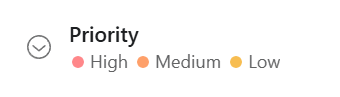
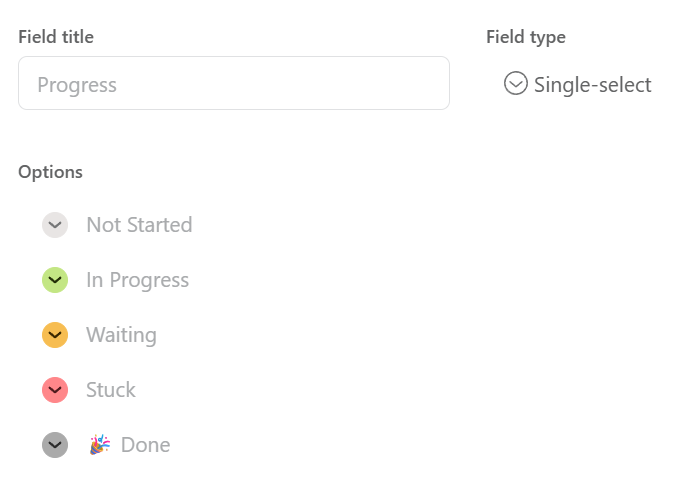
If you're setting up Asana yourself for your organisation, we recommend adding a Priority field and a Progress field to your project boards, with the options & colors as in the images below. These give everyone a quick, visual way to see where a task stands and what's most urgent, without opening every task. Here you read how to add custom fields.
Step 6: Learn more
Useful features to know:
- My Tasks : Your personal view of everything assigned to you, across all projects. A good place to start each day — see our guide My Tasks in Asana: organize your personal task overview for how to set up sections and sorting.
- Inbox: Plan to check your Inbox daily, similar to how you check email. This keeps you informed without constant interruptions.
- Working with tasks:
- Create and assign tasks
- Add subtasks to break work into steps
- Set due dates and mark tasks complete
- Comment on a task to keep context in one place
- Working with projects:
- Use sections to organise tasks within a project
- Set task dependencies so it's clear what's blocking what
- Connect Claude to your everyday tools (Asana, Slite, Slack & more)
- Working in Asana: how to collaborate transparently — how we create and work with projects and tasks
Need help? Asana has a very good help centre. If you get stuck or want to go deeper, it's worth knowing what's available — all free:
- Step-by-step guides with screenshots: asana.com/guide covers every feature in plain language, with visuals at every step
- Free video lessons: academy.asana.com has structured video courses for beginners through to advanced users
- Live and recorded webinars: regular sessions on specific topics like project management, automations, and reporting — you can join live or watch the recording afterwards
- In-app help: click the ? icon in the bottom-left corner at any time to search help articles without leaving Asana
Related
Asana is the "place for work" in a wider setup. For how it fits with your knowledge base, files and chat, and what belongs where, see Where things live.